In past reviews I’ve done on Acer devices, something has always stuck out to me. It is the company’s design language. While they aren’t afraid of working on their own style, their industrial design has veered between extremes in the past. Some designs are too safe, plastic, and boring, while others are adventurous and thin, and sometimes noticeably less likely to endure regular work pressures. The Acer Aspire 5 straddles a line that I finally think showcases what they can do given enough time to care about attention to detail.
Previous exposure to Acer’s Swift family has shown up some interesting limitations of Acer’s design team. They can make a device that is incredibly thin and light, and with gorgeous colours, but some things just failed in their execution. The Swift 7 from years back could bend under its own weight if held improperly. The Swift 5 family had some issues with ergonomics and port placement. Displays have been colourful and bright enough, but the matte finish could have been a visibility issue in some environments.

This machine, though? Spot on. For around R14,000, I don’t think you’ll very easily find something better put together. HP’s Pavilion 14 is closest in terms of features and build quality.
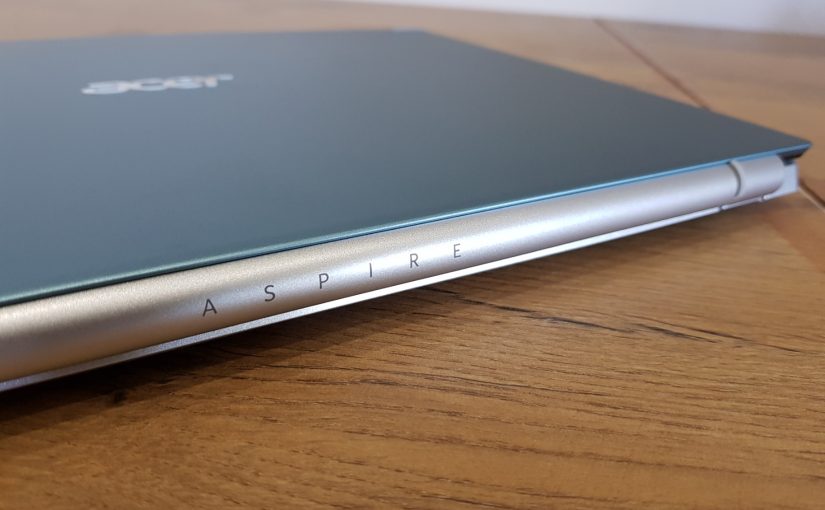
The only hint of colour is seen on the display lid, in this case a steel-blue aluminium shell. As with every laptop with an aluminium shell, scratches deep enough to get past the paint layer will appear silver in colour. This colour choice, while unintentional, turned out to be something I rather like.
The hinge cover meanwhile is sandblasted to a smooth finish, and will be ripe for gouges by sharp objects because the hinge extends outwards to lay a pair of colour-matching rubber feet on your chosen work surface. Two protrusions can be seen on the top corners of the lid for the MIMO-capable WiFi 5 antennae.
Given the choice, Blue or Silver lids for the current Aspire 5 family will be the best picks. Black and Pink will show up marks and scratches much more noticeably. The Gold finish might also fare well, given the low contrast.

Port-wise, there are acceptable compromises here. On the right is a Kensington lock, a USB-A 2.0 port, combination audio jack, and status lights. Note the lack of a SD or Mini-SD reader.

On the left is the barrel charger, Gigabit Ethernet, one HDMI 2.0 port, two USB 3.0 SuperSpeed ports, and one USB 3.1 Type-C port. This is straight USB, with no charging capabilty.
These are rather old standards to see on a modern Ultrabook-class device with an Intel 11th Gen processor. However, consider this: Most people do not own fast USB 3.1 or 3.2 devices, and far fewer are able to take advantage of a Type-C port that supports 10GBps or faster transfers. Acer’s port selection reflects the budget-ish nature of this laptop. It also helps somewhat that USB 2.0 is still here. There are lots of legacy devices that don’t communicate very well over the faster standards.

The hinge design raises the laptop about 3mm off your work surface. The angle creates a gentle incline of the keyboard deck, resulting in a comfortable typing position. Extending the display fully backward to its furthest point will cause the lid to come into contact with the work surface.
If you decide to extend the display fully and then drag it across a surface that is somewhat rough, you may find scuff marks on the lid later. Put this thing on wood or glass, or on a mat.

The way the hinge swings out has some implications for how accident-prone this design may be. Most laptop designs have hinges that do not support the notebook’s weight. This one does.
Consequently, these hinges also take all the strain of heavy hands on the keyboard, or an accidental hand held out to steady yourself when you realise you’re not wearing pants during your Zoom call. Abrupt downwards force placed on the keyboard will cause the hinge to lever the display closed with what can only be described as extreme gusto. Ouchies.

Opening up the Aspire 5, you can see that Acer has taken hints from improvements made by other brands such as ASUS with their X515 family. The keyboard deck is recessed, the large trackpad is slightly off-centre, and the chiclet keycaps have very dark grey lettering on a silver background.
Laptop vendors who are guilty of putting light grey letters on their white keycaps must please take note, and stop the craze of putting low-contrast things together. Yes, HP, that’s you. Stop it.
The typing experience is good with short key travel of about 1mm. There isn’t much flex to the chassis when typing and the incline helps to keep your wrists at the correct angles. The chiclet keys are closer to 95% sized, so they’re a bit smaller than you expect. There’s noticeably less feedback from the keys around the JKL area, and the navigation key layout has Page Up and Down buttons crammed in, but this is still a very good typing experience.
I’m not a fan of the integrated power button, and in general including it on the keyboard is not the best location. But space is at a premium, so it’s a compromise that you’ll have to live with.

Opening the notebook also reveals that exhaust air from the cooler has to vent up onto the display. While this leaves surface temps on the keyboard deck and bottom chassis cooler than expected, it does mean that power-hungry workloads like video rendering may heat things up a tad. For most home-office and student or media consumption use, this is fine. If you were looking to run the laptop docked to a USB-C hub, leaving the lid closed, you may run into throttling problems.
Because of this limitation and the lack of Thunderbolt, the Swift 5 isn’t what I’d call a workstation laptop. Being unable to close the display while docked is a serious oversight for this price point.

The keyboard is fully backlit, so maybe you wouldn’t want to waste the feature by closing the display. The default BIOS settings allow the backlight to dim after 30 seconds, and you can turn this behaviour off.
The display is a matte 14-inch IPS panel with a resolution of 1920 x 1080. At 125% scaling text and graphics are sharp, although the panel itself could do with a bit more colour accuracy and brightness. Working outdoors shouldn’t be a huge problem, but avoid having the sun behind you. Acer’s displays tend to display green incorrectly, so I’d recommend using a wallpaper that doesn’t have as much green as the default.
Brightness levels are probably around 220 nits, compared to my HP G6 with a 1080p VA panel coming in at 200 nits of brightness. But I can’t see the HP’s display outdoors, so Acer does well here.

Eleven Philips head M2 5×5 screws hold the service panel on to the chassis. Clips on the edge of the service panel keep it in place, but they’re not designed to snap off when opening the laptop (cough! Lenovo cough!). There are no warranty void stickers to take note of. Acer allows you to swap out components before you even turn the Aspire 5 on! Bravo.
In terms of upgrade options, we have RAM, SSD, and the WiFi card available to end-users. 4GB of DDR4-2666 memory is soldered on to the motherboard, and the extra DIMM slot will be good for a 32GB module to slot into. The M.2 slot is a PCIe 3.0 x4 interface and only supports NVMe drives.
The WiFi module is a Mediatek MT7921, a WiFi 6-capable adapter with Bluetooth 5.0. It has Linux drivers, but this is Mediatek we’re talking about. I expect to replace this with an Intel AX210 at some point if connectivity is reported to be an issue.

There are other surprises here. The heatsink has a single large pipe directly removing heat from the CPU, and the fan pushes it out a thin fin stack. This notebook does not get hot enough to be uncomfortable, and the fan did not noticeably ramp up in my brief testing. The fan can be removed for cleaning without taking anything else apart.

Acer also includes the SATA connector for a second 2.5-inch drive, and includes all screws not just for the bracket, but also for the hard drive itself in the box.
This is such an unexpected addition that I was genuinely surprised to find it included. Nowhere on the product lists for this SKU of the Aspire 5 does it mention this. Having space for up to 4TB of additional storage space is good stuff.

In terms of hinge design, Acer gets this one right. The hinges screw into a stainless steel body that serves as the backplate for the entire laptop, not plastic. One screw on each corner also fixes the service panel to the hinge.
This gives the Aspire 5 a very rigid feeling when opening or closing the lid, and the action is very smooth. It’s not able to be opened by one hand, unfortunately.

Everything in the Aspire 5 is modular. This is a substantial change compared to previous notebooks, even those from Acer. Everything uses the same screwdriver. QR codes lead you to part numbers. The left and right speakers are detachable. The battery and CMOS battery are user replaceable.
Nothing is complicated to take apart, routing for cables is sensible, and the only thing I’d complain about is the fact that the keyboard is secured by rivets. The display can be replaced by removing the WiFi antennae, detaching the display cable from its ZIF socket, and removing four screws.
Aside from the highly integrated nature of notebook motherboards today, everything in here can be replaced easily by anyone. Assuming that the mainboard continues to work, spares will always be easy to come by.
Let’s move on to the software and BIOS, and close out this hands-on.

The integrated 720p webcam is adequate and has issues with bright backgrounds and limited exposure bracketing. Like every cheap webcam everywhere, this one is included just to tick the box.
Audio is clear, at least.

By default the notebook came with Windows 10 20H2. Being a year out of date isn’t a good thing, but I was going to blow Windows away with a clean install anyway. In terms of bloat, there’s the usual cruft – “App Explorer” from SweetLabs, Acer’s in-box apps, and then whatever the hell Norton Security “Ultra” is.
The word “Ultra” should not be thrown around as some marketing term. Either it’s the bee’s knees of antivirus suites, or it isn’t. Considering Norton 360 exists, I think the marketing department at Symantec needs to lay off the shrooms for a while.
Also, Firefox is here. That’s bizarre. Since when does Mozilla pay for product placement?

What really caught my eye was the partitioning scheme. Acer does not have their standard recovery partition here, nor do they have a separate one for their drivers. You get 99% of the available capacity on the SSD and that’s it. My only complaint is that the recovery partition is at the end of the partition table, rather than just after the EFI partition.


The BIOS is spartan. The defaults are all sane, but F12 and Network boot options are disabled by default, and Fast Boot is enabled. This isn’t a business notebook, to be fair, but enabling F12 should be done as a courtesy to IT admins who get one of these in and then need to wipe it immediately for a custom installation. Or if you want to blow away Windows and install Linux like a crazy person.
To that end, there’s two Gotchas. The first is that you must set a supervisor password in order to change any of the Secure Boot settings. And you must keep that password enabled. You can’t enter it and then disable Secure Boot either – that must always be enabled, and you will only ever have UEFI booting available to you. This makes booting distros like Arch or Mint much less straightforward. Whatever Linux distro you choose, it needs to support UEFI and Secure Boot using Microsoft’s keys.
The second issue is that you need to use Intel’s RAID drivers to boot off the NVME drive. The Windows 10 installer had no clue what to do without it, and Linux distros I briefly tested, namely Fedora 34 and Ubuntu 21.04, could not install to the drive.
This is stupid.
Acer’s decision to not give users the option to change their boot settings is extremely boneheaded, and it is exactly the same issue that I encountered in my review of the Swift 7 some years back. Intel’s RST does nothing substantially different to the regular Windows 10 and 11 NVME driver, and it definitely makes no sense to do this when someone who does end up blowing Windows away isn’t educated enough about this issue to know that they need to load the Intel RST drivers during the install.
If I buy a machine for my personal use, I need to be given all the control that this entails. As an advocate of free software, not being able to put Linux on this laptop would personally be a dealbreaker, and I know that Acer is capable of rectifying this because they have programs to support firmware for their devices not just in Linux, but they also ship laptops with Linux in developing countries.
The good value this laptop offers is tainted by Acer’s decision to lock booting to Windows OSes only. This is the kind of thing I’d love to put Fedora on, but it’s just not going to be possible.